What’s new: Debug DataWeave in your browser
Set breakpoints, step through a transformation, and inspect values without leaving your browser. Here’s how to use the new DataWeave debugger.
You can now pause a DataWeave transformation, inspect its values, and follow execution one step at a time in the browser. The debugger runs locally in a dedicated WebAssembly worker, alongside the editor you already use.
Try a transformation you can follow
This example doubles each number in an array. Choose Edit and run to activate the example, then use Run or Debug right here in the article. You can add breakpoints, step through execution, and inspect variables and watches inline. Choose Open in playground whenever you want the full workspace.
%dw 2.0
output application/json
var factor = 2
---
payload map ((item, index) ->
  item * factor
)[1, 2, 3][ 2, 4, 6 ]
Start a debugging session
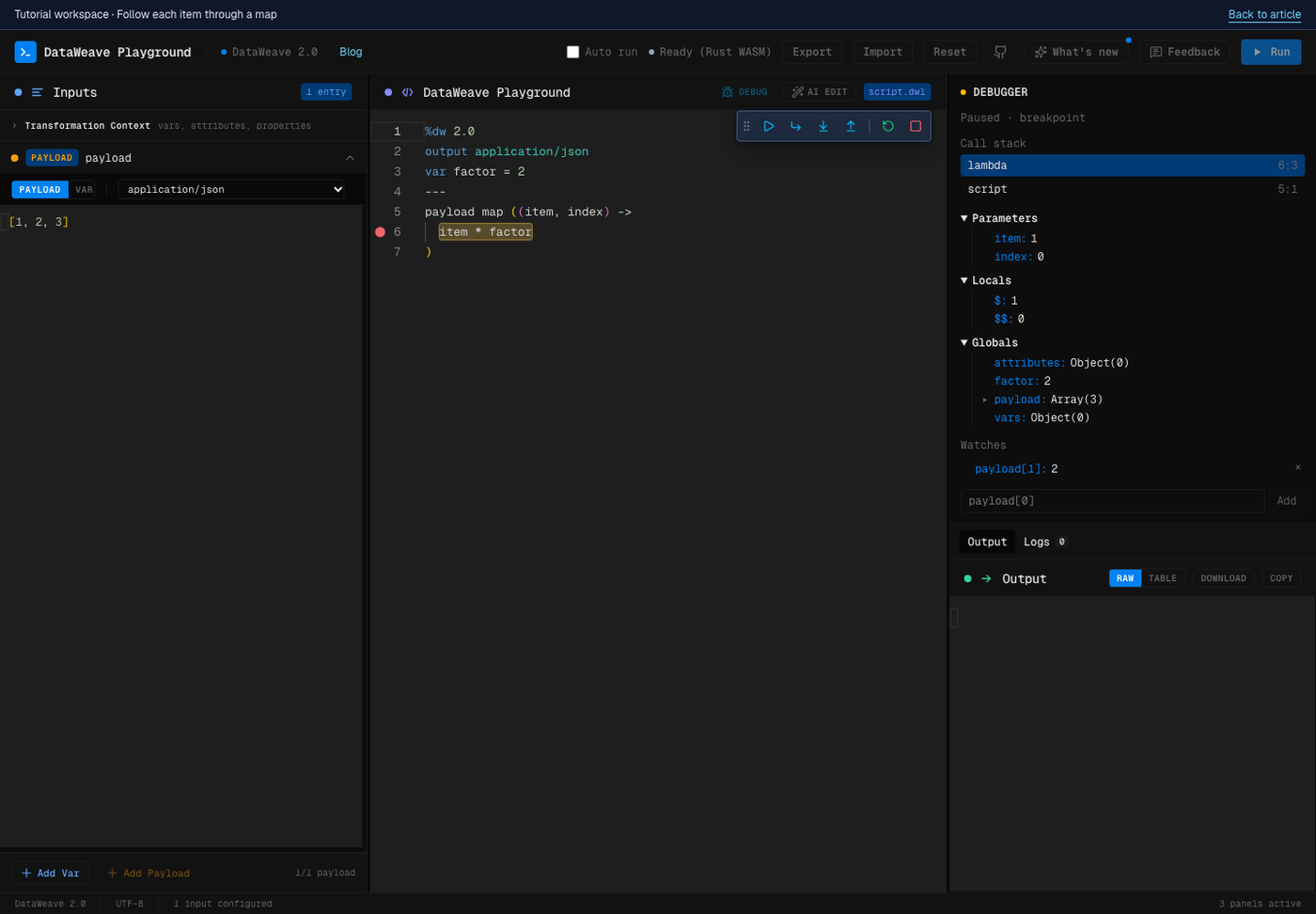
Activate the example above, then choose Debug in its script header. You can also focus the example and press F5, or open it in the full playground. With no breakpoints, the debugger pauses at its first executable expression. A toolbar appears above the script, and an inspector shows the paused session. In the full playground, the toolbar floats over the editor and can be dragged; in the article it stays in its own row.
Add a breakpoint in the gutter
Stop the first session, then click in the script gutter beside line 6, item * factor, to add a breakpoint. Choose Debug again. When a breakpoint is set, execution runs to its first hit instead of pausing at entry. Continue through the transformation to pause again as the map visits each item. Click the breakpoint marker to remove it.
Move through the code
Continue (F5) resumes execution until the next breakpoint or completion. Pause (F6) interrupts a running debug session. Over (F10) advances without stepping into a nested call. Into (F11) follows execution into a call or expression. Out (Shift+F11) runs out of the current call when a caller exists; the control is disabled at the top level.
Inspect variables, frames, and watches
Use the call stack to select a frame and inspect its scopes. Expand values in the variables inspector to explore nested data. Add payload[1] as a watch expression to track the second input value as you step. A failed watch displays its error without ending the session.
Restart or stop
Restart begins again with the script and inputs captured when you started debugging. Stop (Shift+F5) ends the session and returns control to the editor. While debugging, script and input editing are locked and normal Run is disabled. Stop first if you want to change the transformation or its inputs.
Use the toolbar or keyboard
F5          Start / Continue
F6          Pause
F10         Step over
F11         Step into
Shift+F11   Step out
Shift+F5    Stop
If your keyboard reserves the function keys for system controls, use its Fn modifier or the toolbar buttons. The inspector and highlighted source expression update as execution pauses.
What to expect
The debugger supports a subset of DataWeave constructs. Unsupported debug syntax reports a source-located error when the session starts. For example, orderBy is currently unsupported in debug mode even though normal execution can handle it. Start with this map example, then explore your own transformation. For inline examples, keyboard shortcuts apply only while focus is inside that example. Stop or Reset example ends its session; leaving the article also releases its worker.